Your picture, with a painterly point of view
Turn a photo into a painting-style image. Upload your picture, choose a painting style, and add a short description to guide the result.
A portrait you love, a place you remember or a detail worth a second look can be the starting point. Photo to Painting gives you a way to explore that picture through painted color and texture rather than starting from a blank canvas.
Begin with the photo and choose a painting direction. You can add a few words about the atmosphere you want, but you do not need to describe everything already in the picture. Review the finished image as a new interpretation, not an exact copy.
Let the photo do the explaining
Use a picture that clearly shows your subject and framing. For a portrait, check that the face and expression are visible. For a scene, leave room for the details that give the place its character. A short note can then focus on the treatment you want rather than repeating the whole photograph.
Open the composer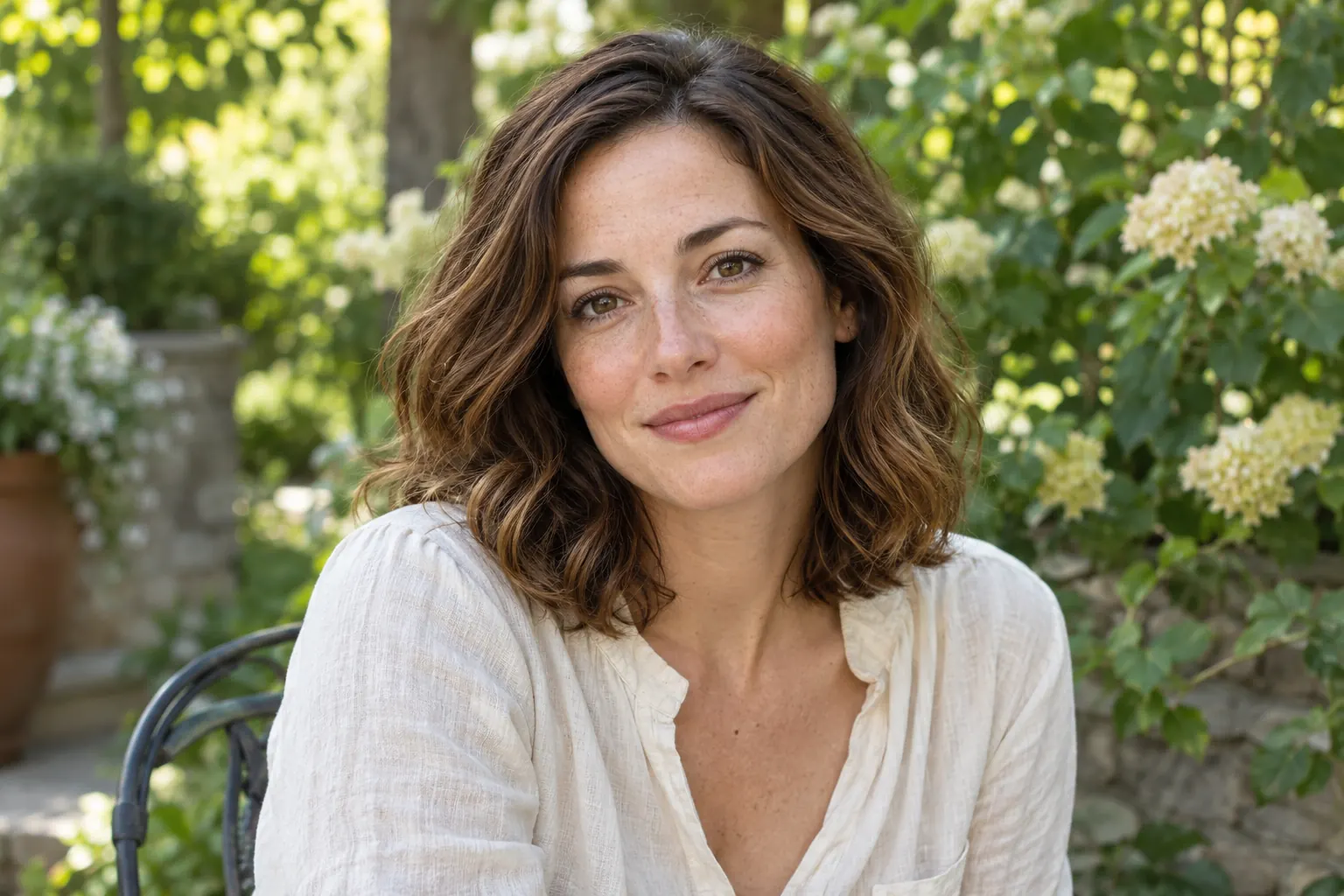
Think in color and brushwork
A painting direction is more than its name. Softer edges and lighter color can create a quieter mood; deeper shadows and more visible brushwork can make a picture feel bolder. Choose an available style and describe the qualities that matter to you.
Open the composer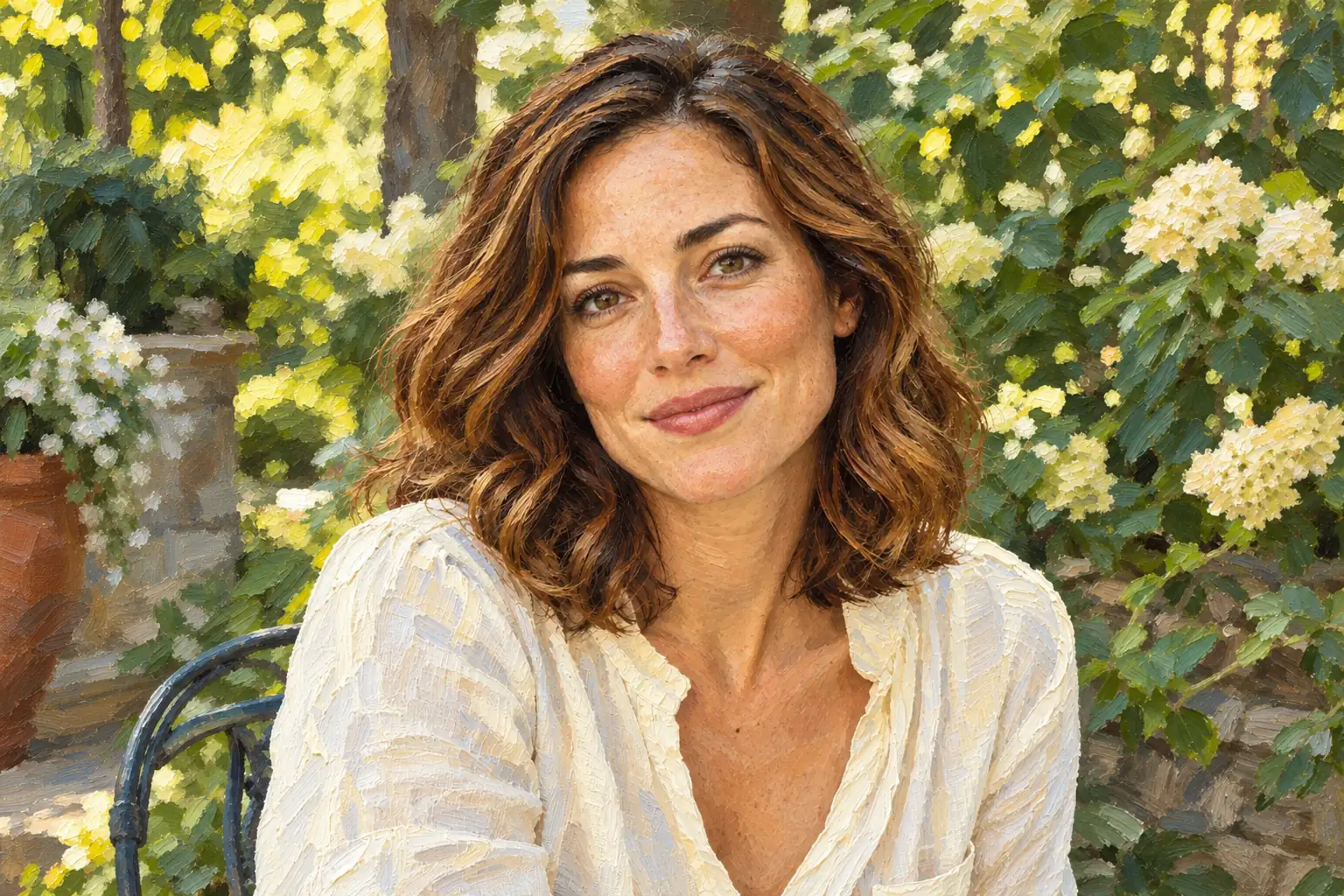
Look beyond the painted surface
When you review the result, check the subject first, then the framing and background. A pleasing texture is only part of the picture. AI may change small features or objects, so look closely before deciding whether the image is right for your intended use.
Open the composer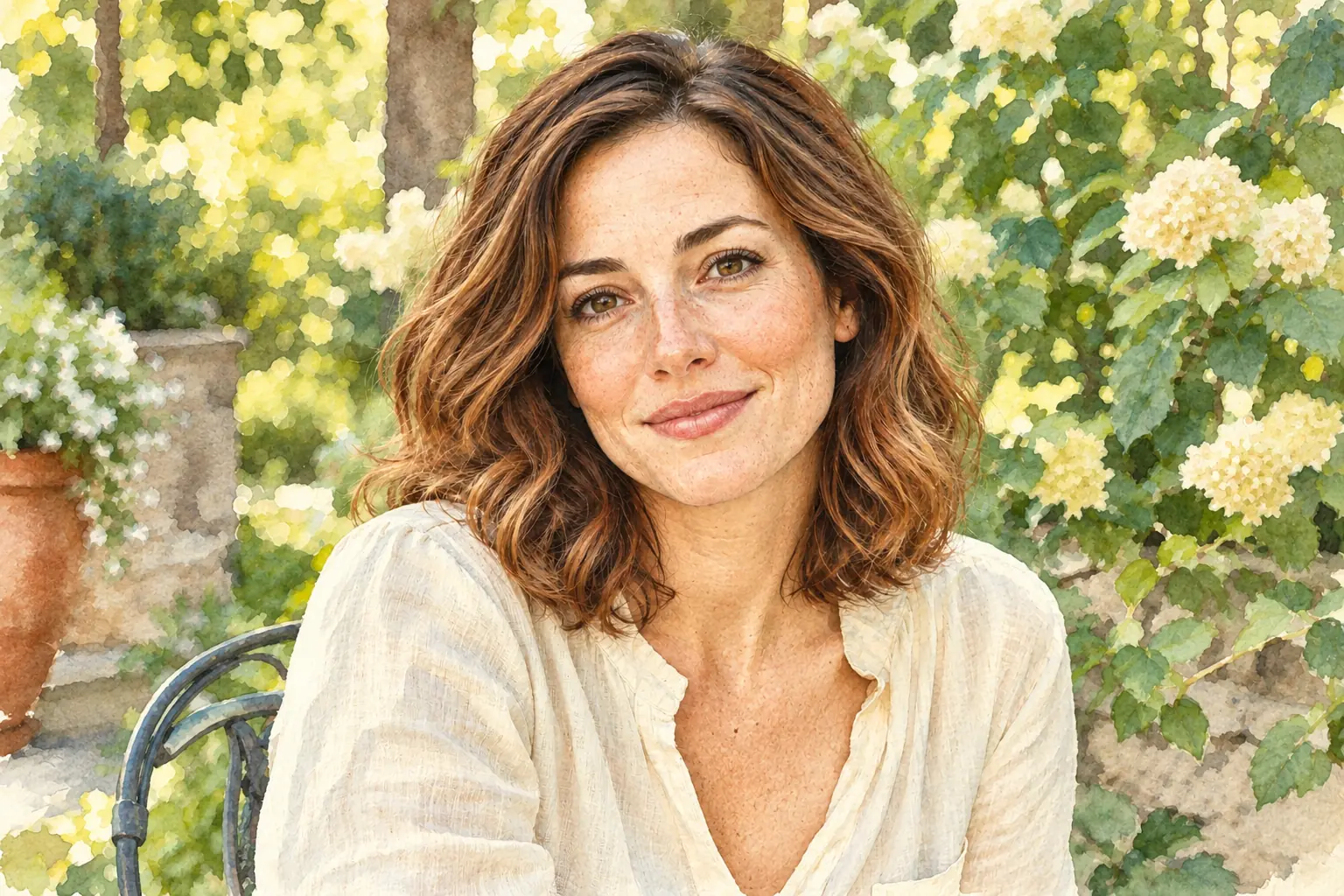
One workspace for your painting direction
Keep the picture, description and output choices together.
Photo-led creation
Use Image to Image when you want an existing picture to be the starting point.
An optional description
Add a note about mood, color or texture without rewriting every detail in the photo.
Output choices
Review the model, aspect ratio, image count and resolution settings available for your selection.
A text-first alternative
Use Text to Image in the same workspace when you want to begin with an idea rather than a photo.
Turn a photo into a painting in three steps
Start with your own picture, or use the text mode for an idea you have not photographed.
Transform a photo
- 01
Add the picture you want to transform
Choose Image to Image and upload a photo you have permission to use. Check that the subject and important details are visible.
- 02
Set a painting direction
Choose an available painting style. Add a short description if you want to guide the color, mood or brushwork, then review your output settings.
- 03
Generate, inspect and download
Select Generate painting when you are ready. Review the completed image, paying attention to the subject and background, before choosing whether to download it.
Start with an idea
- 01
Choose Text to Image
Stay in the same workspace and switch to the text input mode. You do not need a photo for this path.
- 02
Describe the painting
Name the subject, setting and the feeling you want. For example, describe a quiet seaside cottage with loose brushwork and soft morning colors.
- 03
Review your choices before generating
Choose the available style, model and output settings, then select Generate painting. Compare the result with your description and decide what you want to explore next.
What photo-to-painting AI changes
Photo-to-painting AI creates a digital interpretation of a photograph, with color, edges and texture expressed in a painterly way. It is different from ordering a hand-painted canvas: the result is an image, not a physical artwork delivered to your door.
Use the result to explore a visual direction, revisit a favorite picture or develop a creative reference. Treat likeness and fine detail as things to check in each result, rather than something a style name can guarantee.
Photo to Painting FAQ
How do I turn a photo into a painting?
Choose Image to Image, upload your picture and select an available painting style. Add an optional description, review your settings and select Generate painting. Review the result before downloading.
What kind of photo should I start with?
Choose a clear, well-lit photo where the subject is easy to see. Avoid a heavily blurred image or one cropped across an important detail. Use a photo you have permission to upload.
Do I need to write a prompt?
For photo conversion, start with your picture and a painting style. A description is optional: use it to guide the mood or appearance, such as softer colors or more expressive brushwork.
Will the painting look exactly like my original photo?
Not necessarily. AI can reinterpret facial details, objects, colors and backgrounds. Compare the finished image with your original and check the details that matter to you.
Is this a physical, hand-painted portrait?
No. Photo to Painting creates a digital painting-style image with AI. It does not commission an artist to paint or ship a physical canvas.
Can I start without a photo?
Yes. Choose Text to Image in the same workspace and describe the painting you want. To transform an existing picture instead, use Image to Image and upload it.